

FAQs
Frequently Asked Questions
How do I register with Salaroo?
To register, simply go to the How to Register section from the menu (or click this link). Fill in the quick form to start using the software with a 30-day free trial.
I’ve registered with Salaroo but can’t use the software during my trial. Why?
Once you complete your registration, you should receive a confirmation email.
Please check your inbox (and your Spam, just in case) and use the URL provided to access the platform. If you haven’t received the email, try logging into the system again to trigger a new one, or contact our Customer Support team for assistance.
I need help. Who should I contact?
Our Customer Support is available Monday to Friday, from 8:30 am to 5:00 pm.
You can call us at (+356) 2137-4078 or email us at salaroo@dakarsoftware.com
How do I register a new company?
Once logged in to Salaroo, go to the top menu and select Settings > Company Settings > Add Company.
From there, you can fill out the form with your new company details.
How do I enter previous systems / years?
After logging in, simply select the year from the dropdown menu located next to the Salaroo logo at the top of the screen.
I need to print a payslip. How should I proceed?
From the sidebar menu, click the tab with the printer icon to access the Reports section.
Select Payslips and set your criteria, including the correct company and Pay Period. Click Apply Criteria, then scroll down for more options or click Run Reports.
The payslips will be generated as PDFs, ready to view, save, or print.
Note: To print a payslip for a specific employee, select their first and last name from the Employee field and then click Apply Criteria.
How can I create a new employee who has a main job elsewhere?
If this is their second employment, i.e. employed full-time elsewhere, tick Special Part Timer from Employee Details.
If they want their income to be taxed at the part-time rate of 15%, set the FSS Tax Schedule to one of the following:
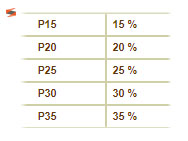
and tick “35% tax at €10,000 (P15)”. i.e. P15 is first €10,000 taxed at 15%, then anything over and above at 35%.
How can I work out a past payroll?
You will also need to suspend their NI contributions by going to Suspensions (from within Employee Details) and tick Suspend Employee NI and Suspend Company NI.
If the employee works variable hours, tick Part Timer (Variable Hours).
If the employee works fixed hours, tick the P/Timer Hours (Per Pay).
To re-calculate a past calculated payroll, you will need to unlock that pay period.
Do this by going to Settings, then Unlock Payrolls.
Choose the pay period you need to re-calculate and then click on Unlock Payroll. Let us know if you require further assistance.
How can I change the date of the SEPA file?
The SEPA date can be changed from Reports, SEPA File Date (Optional), select the date and click on the Accept Criteria button.
How do I extract the end of year reports to upload them in the CFR website?
Case 1: you have fewer than 9 employees
Simply generate the FS3 Report and Print FS7 Report from Reports, End of Year Reports and send them to the CFR.
Case 2: you have more than 9 employees
Submit the files electronically. To submit the end of year electronic lodgement files, kindly follow the steps below:
Issue the electronic lodgements file from Reports, End of Year Reports and FS3 Electronic Lodgements.
This will download a zip file including 3 files, one ending F3.19, one ending SS.19 and one PDF.
Then log into the CFR website using your credentials and input the amounts in the CFR website (input the amounts you have in the PDF file)
In the FS3 Export File – Choose file you need to choose the file ending F3.19, and in the SSC Export File – Choose file you need to choose the file ending SS.19 and submit.
The Salaroo system is updated according to all legislative changes except for the areas listed below.
What is updated automatically by Salaroo from one year to the next and what do we need to update ourselves?
This is because companies have different procedures and may fall under different wage regulation order.
COLA – users need to update this manually:
Go to Employees, then Employee Details, choose the employee, click on Salary, update the hourly rate – it is best to always update the hourly rate due to part-timers – and click on Save.
Any changes made to leave entitlements.
One example is the additional day of vacation leave granted in 2020, bringing the total individual entitlement to 27 days. Update this by going to Settings, then Company Leave Settings. Update the amount under the Entitled Hours column and click on Save.
The system does not apportion a part-timer’s entitlements based on their working hours. You need to amend this by going to Employees, Leave Entitlements, choose the employee, year and absence type, calculate the pro-rata amount (e.g. if the system issued an entitlement of 216 hours and the employee works 30 hours a week, 30 hours ÷ 40 hours x 216 hours), enter this amount in the Entitled Hours textbox and click on Save. You may enter any leave hours brought forward from (the) previous year(s) in the textbox underneath.
How can I enter FS5 receipts?
First, open the Payroll Panel to check that you are in the correct payroll period. Then, go to Reports Tab and select Government Reports. Choose Monthly Government Reports. By expanding Monthly Tax Reports and click Issue Monthly FS5 Report to re-issue the report.
The system is now generating a new FS5 report, ready to be uploaded to the government.
In FS5 Reconciliation, you’d be able to enter the Receipt Number and Receipt Date by double-clicking on each field.
Do not forget to save.
How do I terminate emplyment of an Employee?
Go to the Employee Details window. In the Employees tab, click Employee Details and use the Search button to find the employee whose employment needs to be terminated.
Enter the Termination Date in the designated field, then save your changes.
Once you’ve registered with Salaroo, you’ll have access to a series of video tutorials that guide you step by step through the system, helping you with every need.